Edit text in image.
Keep the original style.

Change the words, not the whole design.

Replace text Keep the design

No design skills needed to describe an edit · Image upload happens on the next site.

Start with an existing image Describe the exact wording Keep surrounding details in view

Explore examples before choosing the image you want to edit.

Works well for Printed designs App captures Product images Signs & ads

Made for the images you already have.

From a single correction to a set of finished designs, start with the image in front of you.

Before: printed event program showing the original speaker nameBefore
After: event program with a different speaker name in the same styleAfter
Event programs

Event programs

A speaker changes or a name needs correcting after the program has been laid out. Work from the finished page, keeping its typewriter lettering, highlighter marks and paper texture in view. The same approach is useful when all you have left is an exported image.

Dr. Mara KesslerDr. Jonah Reyes
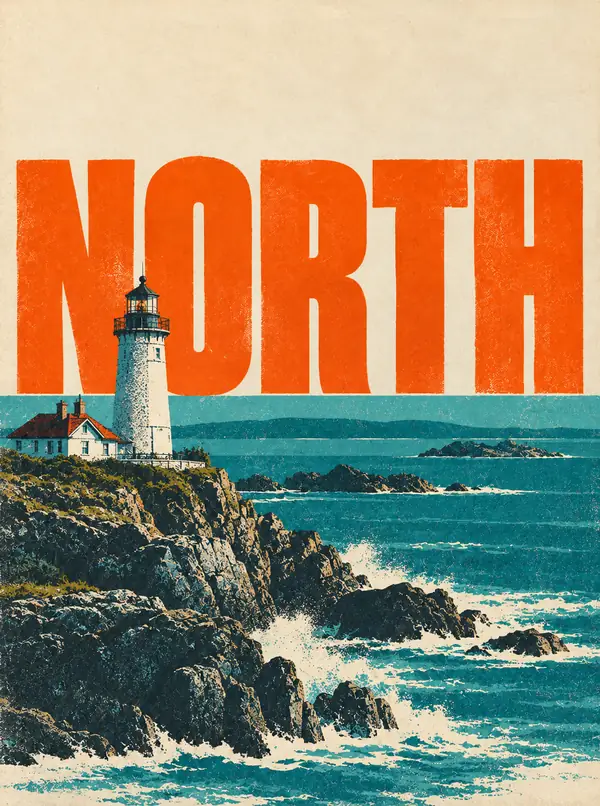
Before: coastal lighthouse poster headed NORTHBefore
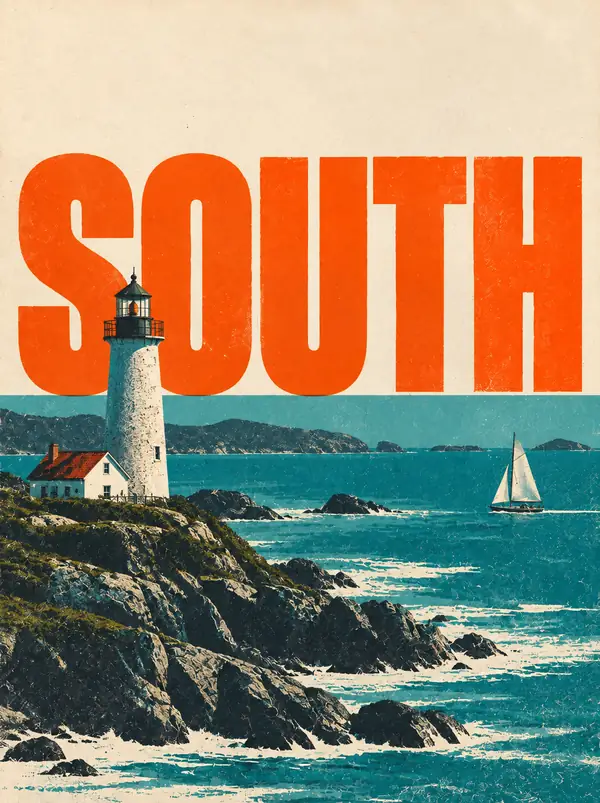
After: matching lighthouse poster headed SOUTHAfter
Posters & flyers

Posters and flyers

A series can share one design while its headline changes from edition to edition. When the design file is unavailable, describe the word that needs replacing on the finished poster rather than rebuilding the artwork.

NORTHSOUTH
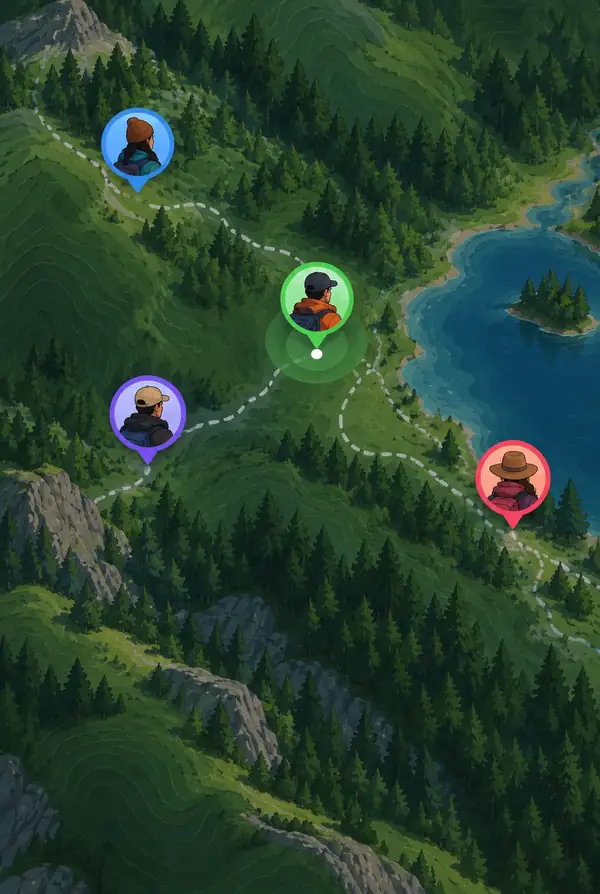
Before: mobile map screenshot with its original location messageBefore
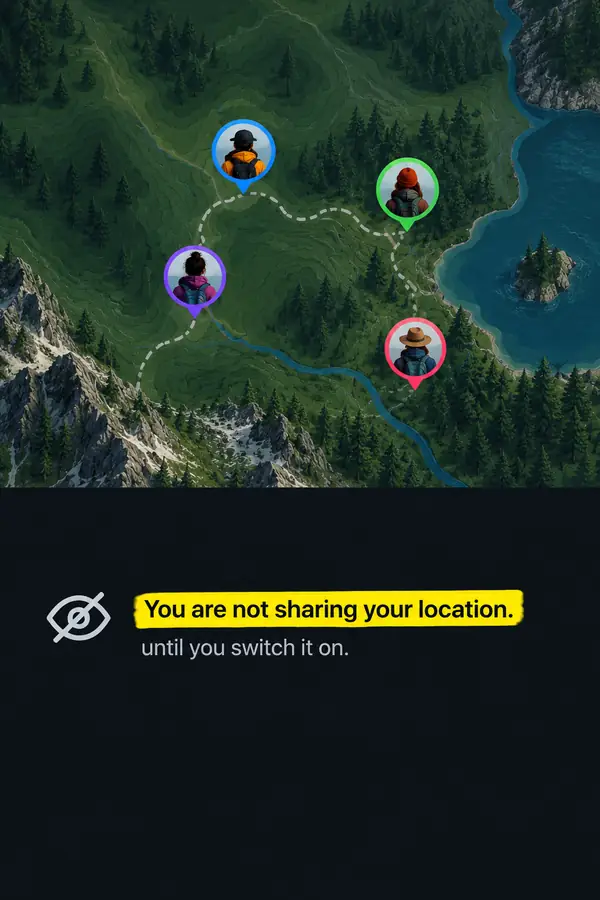
After: mobile map screenshot with revised location wordingAfter
App screenshots

App screenshots

Sometimes a sentence changes after the screenshots are exported. Describe the new copy while identifying what should remain: the map, avatars, button, interface lettering and highlight. See the screenshot guide.

You are not sharing your locationYour position isn't being disclosed
Before: hand holding a packaged product against the sky with a promotional offerBefore
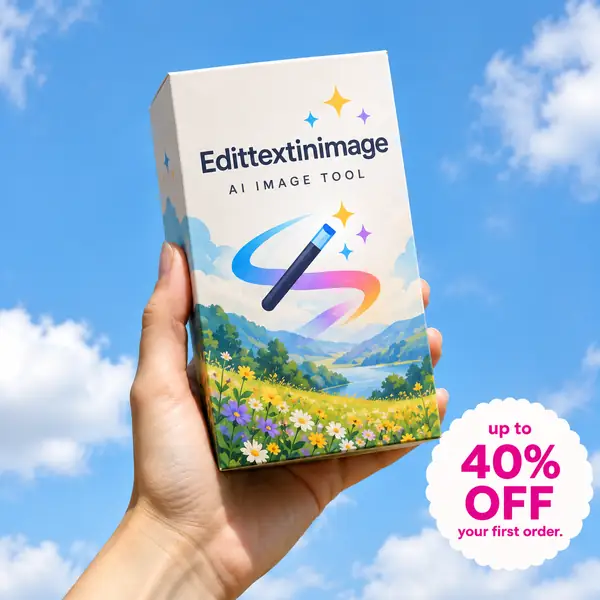
After: the same packaged product photograph with an updated promotional offerAfter
E-commerce

Product photos

The offer may change while the product shot does not. Start from the photo you already have and specify the promotional wording, leaving the package, hand and background as they are. Explore more examples.

40% OFF55% OFF
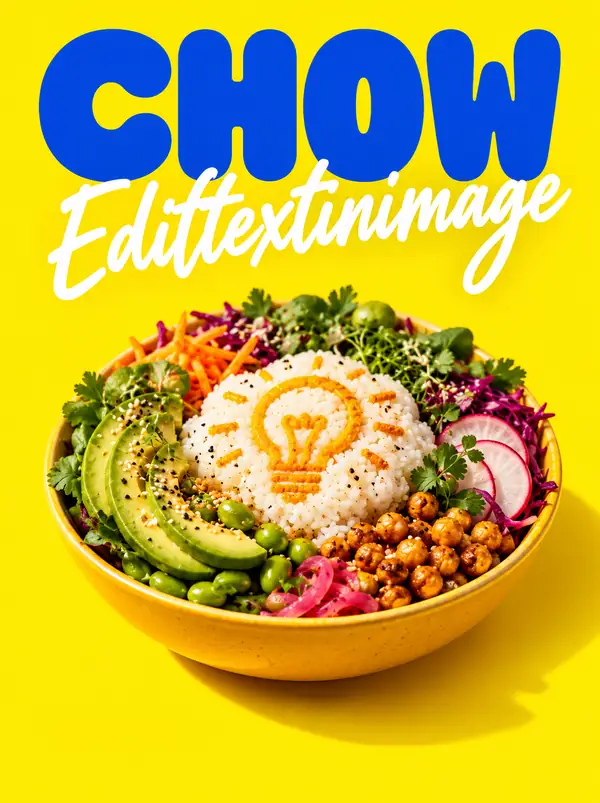
Before: bright yellow food advertisement with a sandwich and GRUB headlineBefore
After: matching yellow food advertisement with a CHOW headlineAfter
Social ads

Ad creative

Try another headline on an existing campaign image without starting the layout again. Describe the copy you want and call out the distinctive lettering, food photography and supporting text that should stay put.

GRUBCHOW
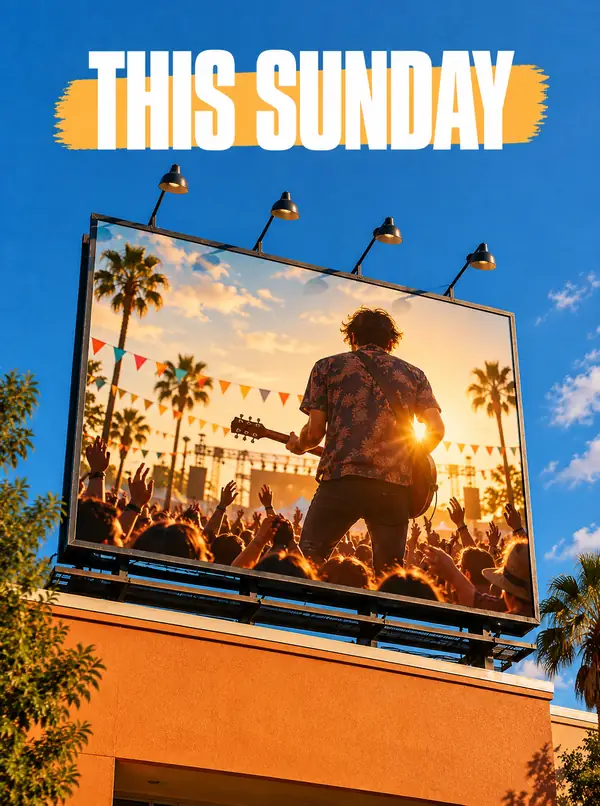
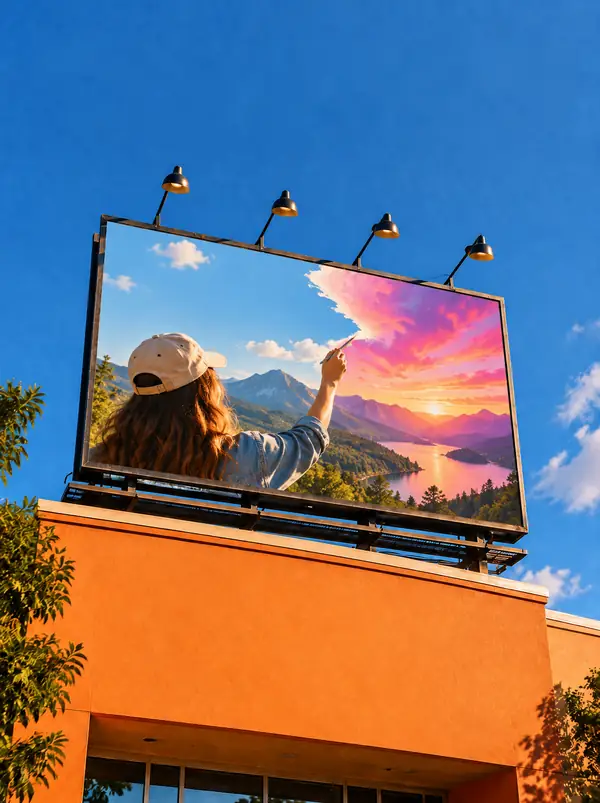
Before: outdoor event billboard announcing this SundayBefore
After: the same outdoor billboard announcing next SundayAfter
Events

Reusing event materials

The event moves, but the approved artwork already exists. Rather than asking for a new design, identify the date line in the finished image and describe the replacement in its original setting.

This SundayNext Sunday

What is Edittextinimage?

Edittextinimage is a guide to changing words in an existing image rather than remaking the entire design. You might begin with a poster, product photo, screenshot or event program, identify the text that is there, and describe what should take its place. The examples here show why the surrounding font, color, size, perspective and background matter when you review an edit.

Start from the job you have.

Different images bring different details to protect. Pick the guide that matches the change you want to make.

Look closely at the text replacement.

A convincing change is about more than the words. The surrounding design gives you a practical checklist for reviewing the result.

Typeface

Compare letter shapes, weight and spacing.

Perspective

Check how the words sit on the surface.

Background

Inspect the area around the changed text.

For the clearest review, begin with a high-resolution image and specify the complete word or phrase you intend to change.

How to edit text in an image — 3 simple steps.

Begin with the image, describe the change, then inspect the outcome.

01

Choose your image

Have the poster, screenshot or photograph you want to work on ready to upload.

02

Describe the change

Give the original wording and its replacement. Mention important details of the surrounding style.

03

Review the result

Check the new words alongside the font, perspective and nearby image details.

Choose a starting point.
Keep the task simple.

Three common ways to approach an existing image.

A small correction

One word

Fix a name, date or short headline while keeping the original composition.

Edit an image
For campaigns

Another version

Use an existing graphic as the starting point for alternate wording.

Explore editing
For finished files

An exported image

Start with the image you have when the original design file is unavailable.

Start an edit

When is Edittextinimage not the right approach?

Changing existing words is a different task from designing a new image. In these situations, another approach may be more useful.

Designing from scratch

If there is no image or existing lettering, begin in a layout or design tool instead.

Tiny, pixel-art text

A few pixels offer little room to redraw a letter. Find the highest-resolution source available.

Part of a longer word

Give the entire original word and the entire replacement so the intended boundary is clear.

Multi-page documents

Treat a page of a document as an image only when that is appropriate for the task.

Extremely wide or tall files

Check the destination editor's image dimensions and format requirements first.

Identity and official records

Do not use image-editing tools to alter IDs, financial records or other official documents.

Frequently asked questions about editing text in images.

Answers to common questions before you begin.

How do I edit text in an image online?+

Start with an existing image. Identify the complete text you want to replace, describe the new wording, and check how it fits the original design.

Is Edittextinimage an image editor?+

This page offers examples and a handoff to an editing site. The image is uploaded and the edit is completed on that next site, not here.

Can I try changing image text without design experience?+

Yes. You can begin by describing the original words, their replacement, and the parts of the image you want left alone. Review the destination site's terms before continuing.

What kinds of images can contain editable text?+

Common examples include posters, ads, screenshots, signs and product photographs. What can be uploaded depends on the editor you use.

Should I use an editor or the original design file?+

If you have the layered source file, editing its text layer may be easier. Image-based editing is especially relevant when only a finished export remains.

Which image resolution should I choose?+

Use the clearest version you have. Small, compressed or blurry lettering is harder to inspect and match.

What if the result does not look right?+

Check the spelling of the original phrase, provide the full replacement, and describe the font, color or surface more specifically.

Can I use an edited image for a project?+

Make sure you have permission to use and edit the source image. Any additional usage conditions come from the editing service you choose.

What should I avoid editing?+

Do not change official records, identification or evidence, or make edits intended to mislead someone about a transaction or communication.

Ready to change the text in your image?

Take your image and wording to the editor, then review the result against the original.

© 2026 Edittextinimage. This page provides guidance and examples; image editing takes place on the linked service.

Edit an image
Edit an image